
How to View and Generate the Surcharge ReportYou can easily access your Surcharge Report from the LateShipment.com dashboard. Follow the steps below to view surcharge details and generate a customized report.
Access the Surcharge Report Dashboard
Log in to your LateShipment.com account.
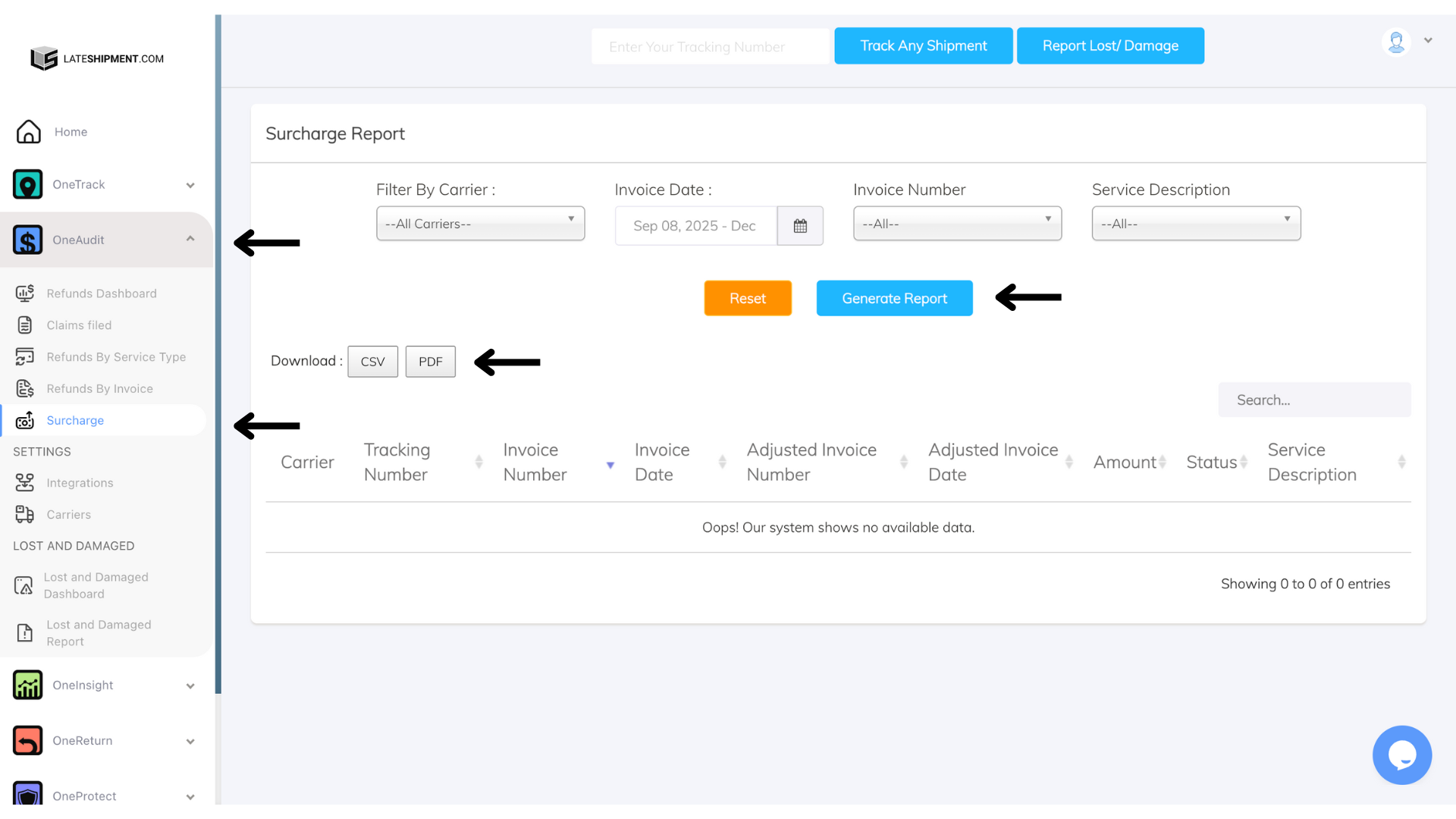
From the left-side menu, go to One Audit.
Click Surcharge.
You will be redirected to the Surcharge Report Dashboard.
Details Available in the Dashboard
The dashboard provides a detailed table with the following information:
Carrier
Tracking Number
Invoice Number
Invoice Date
Adjusted Invoice Number
Adjusted Invoice Date
Amount
Status
Service Description
You can review all surcharge-related data directly from this view.
Generate a Surcharge Report
To generate a filtered or customized report:
Filter by Carrier
Select the carrier you want
Or choose All Carriers
Select Invoice Date Range
Choose the date range relevant to your report
Filter by Invoice Number
Select specific invoice numbers
Or click All to include every invoice
Select Service Description
Choose a specific service type
Or select All for a complete report
Click Generate Report.
Reset Filters
If you want to clear all selections and return to the default view, click the Reset button.
? Tip: Use service and carrier filters to identify surcharge trends and carrier-specific cost patterns.
Was this article helpful?
That’s Great!
Thank you for your feedback
Sorry! We couldn't be helpful
Thank you for your feedback
Feedback sent
We appreciate your effort and will try to fix the article