
Overview
The Manage Label Dashboard provides a centralized location to create, monitor, and manage all shipping labels. It enables merchants to identify orders requiring labels, review their fulfillment progress, and manage existing or canceled labels efficiently.
Accessing the Dashboard
Log in to your LateShipment.com account.
Navigate to OneShip → Manage Label from the left-hand menu.
The dashboard is divided into three key sections:
Orders Created
Labels Created
Canceled Labels
Orders Created
The Orders Created tab lists all orders synced from your connected Shopify store.
This is where you identify orders that still need shipping labels.
Use this section to:
Review incoming orders and their fulfillment status.
Confirm origin address details, shipping addresses, and items before generating labels.
Create shipping labels directly from the order list.
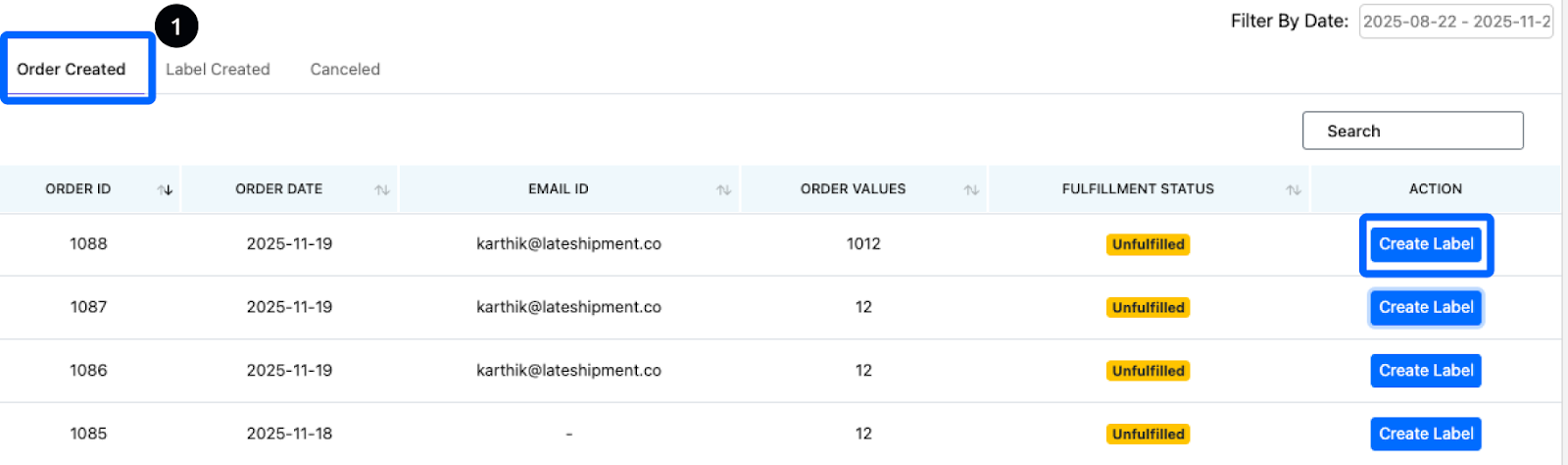
This tab is designed to help you quickly take action on unfulfilled orders and keep your fulfillment workflow moving smoothly.
Labels Created
The Labels Created tab shows all shipping labels that have been successfully generated.
Use this section to:
Track all active labels associated with your shipments.
View full label details, including the linked order, carrier, and service type.
Download labels for printing whenever needed.
Cancel labels (if supported by the carrier) when a shipment no longer needs to be sent.
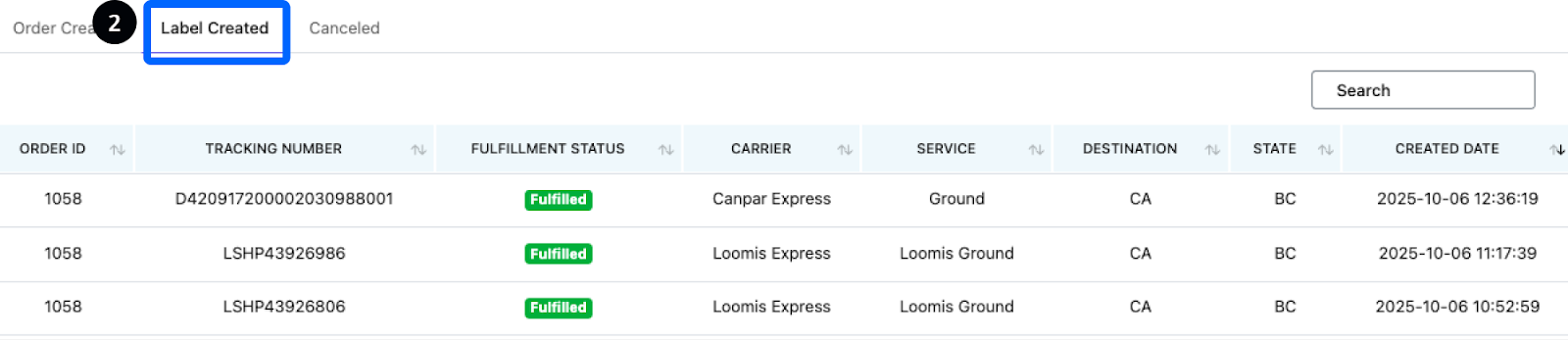
This tab serves as your central location for managing all generated labels and maintaining visibility into your shipping activity.
Canceled Labels
The Canceled Labels tab displays all shipping labels that have been voided.
Use this section to:
Review labels that were canceled and no longer valid for shipping.
Access shipment details for auditing or record-keeping.
Ensure all canceled labels match your operational changes, such as order updates or fulfillment issues.
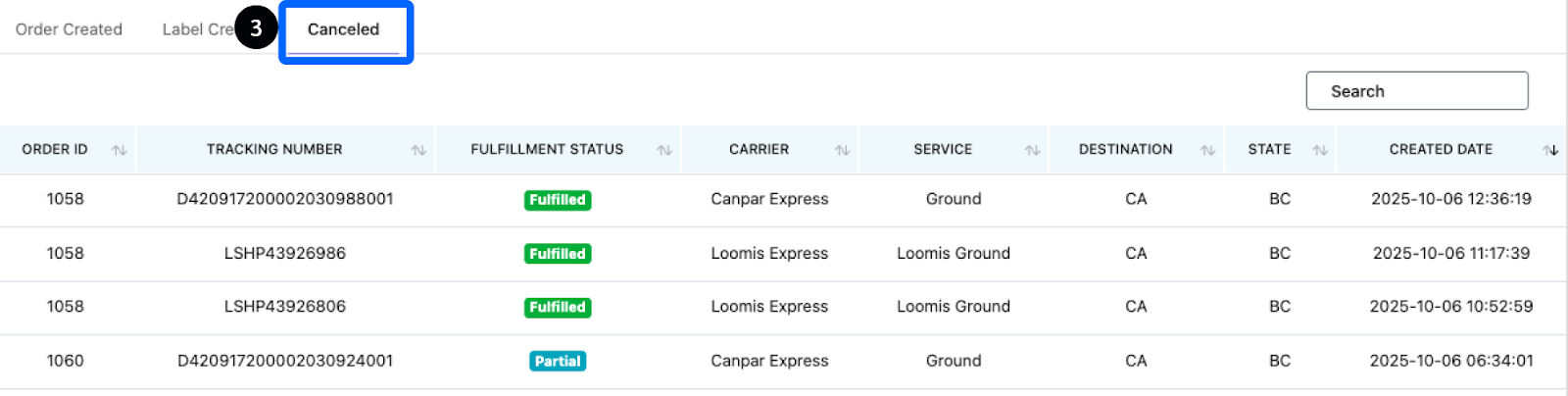
This section helps maintain accurate records and prevents accidental reuse of voided labels.
How to Use Filters
Filter by Carrier
Select a carrier from the dropdown to view labels created or canceled with that provider only (e.g., UPS, DHL, Canada Post).
Filter by Service
Choose a service level such as Ground, Express, or International to narrow results based on the shipping method used.
Filter by Date
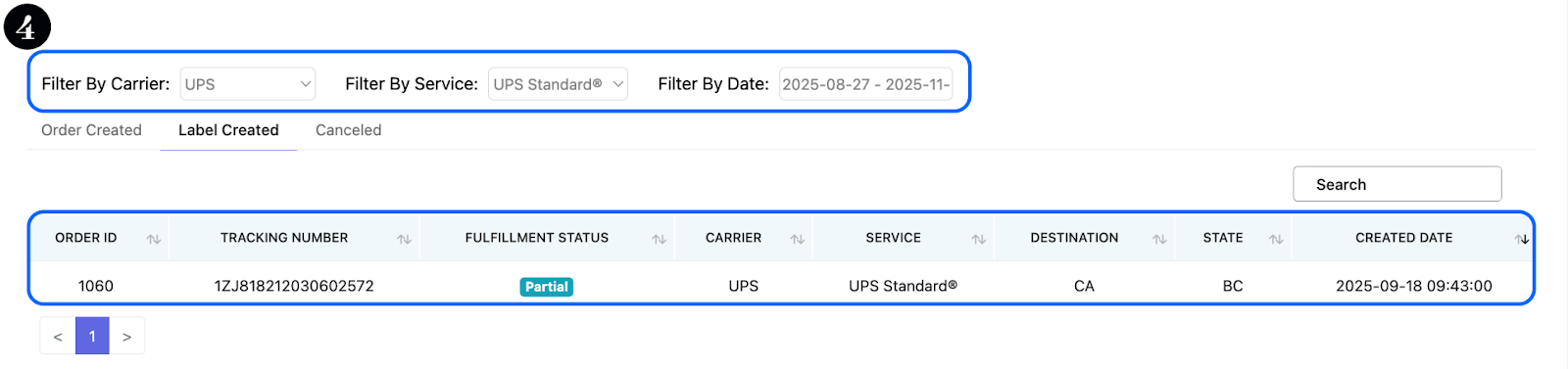
Pick a preset or custom date range to view labels created or canceled within that specific timeframe.
Was this article helpful?
That’s Great!
Thank you for your feedback
Sorry! We couldn't be helpful
Thank you for your feedback
Feedback sent
We appreciate your effort and will try to fix the article