
Overview
A multi-package shipment is a single order containing multiple packages. The shipment will have a master order ID, with individual tracking numbers for each additional package. This feature allows you to configure each package with its own weight, dimensions, and insurance.
Use a multi-package shipment when an order must be shipped together but is too large or fragile to fit into a single box.
Create a Multi-Package Shipment
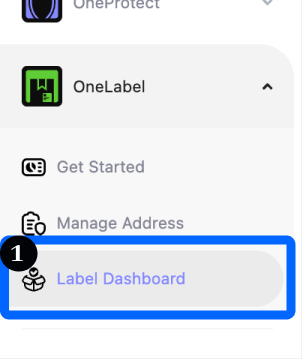
Navigate to the Manage Labels dashboard.
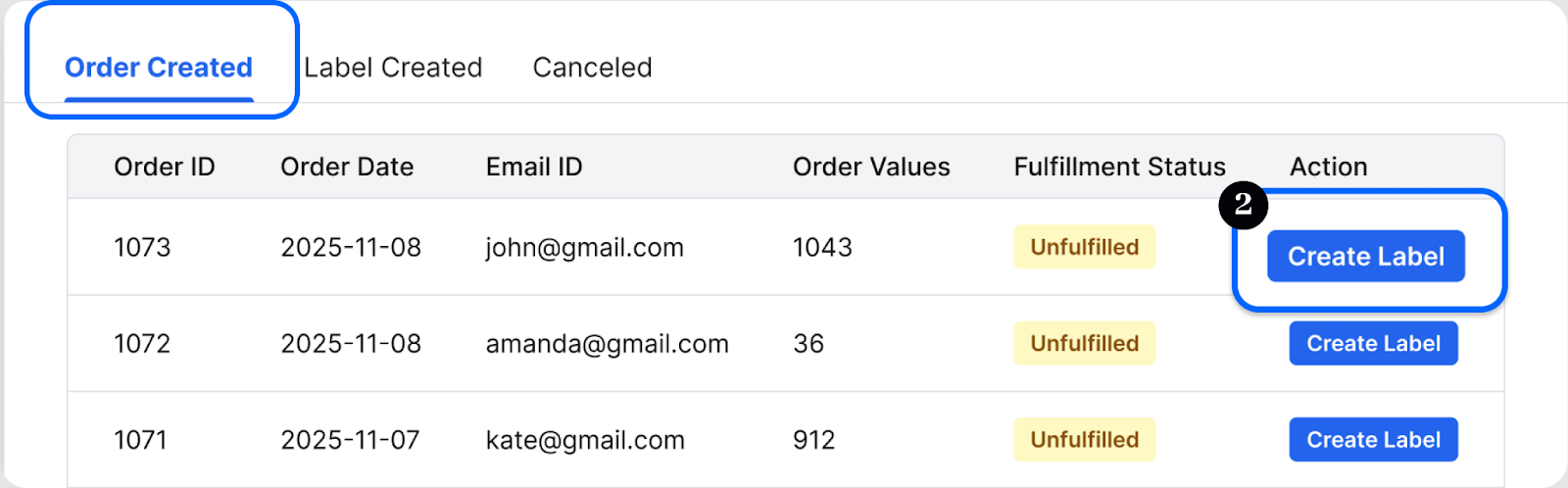
In the Order Created tab, select the order for which you want to generate a label.
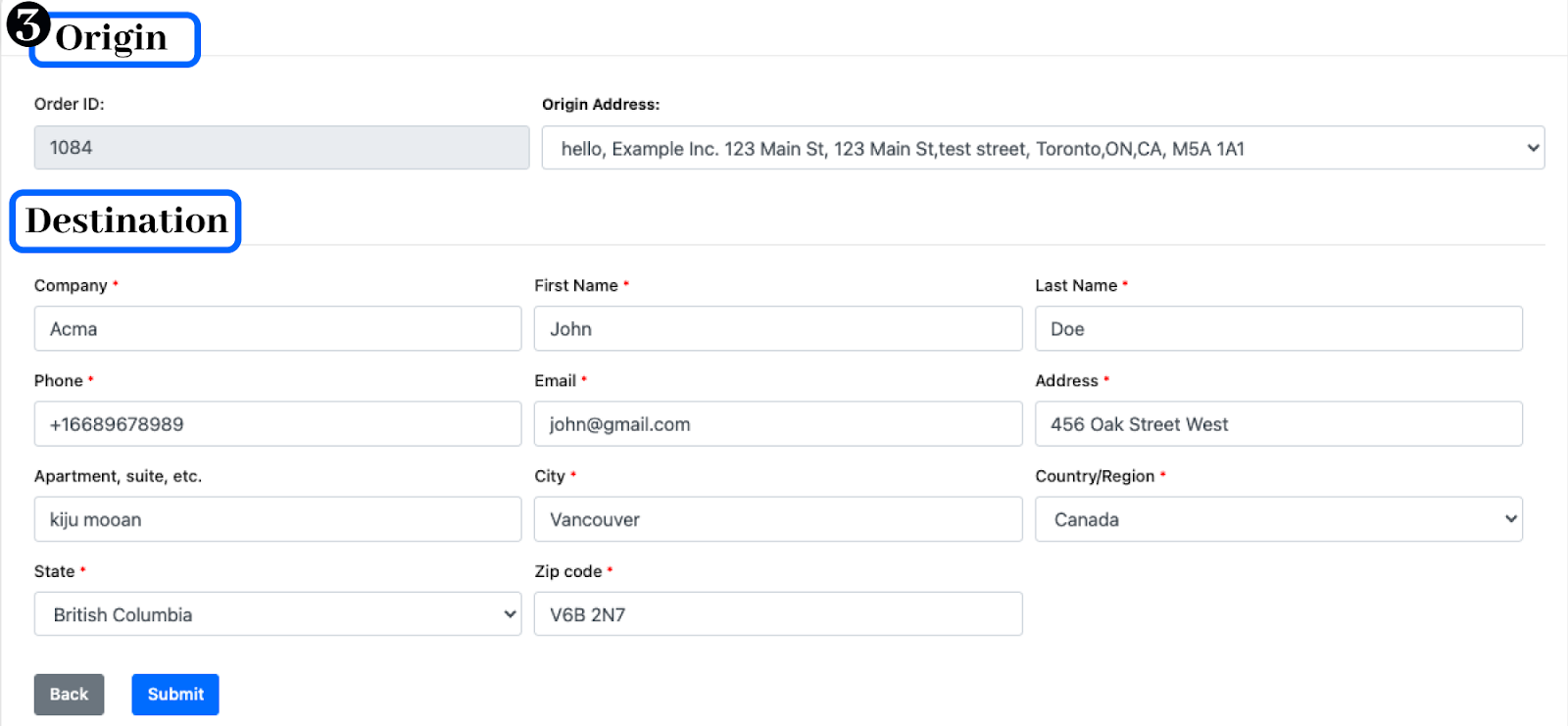
Confirm the origin and destination addresses for the shipment.
Packaging Type
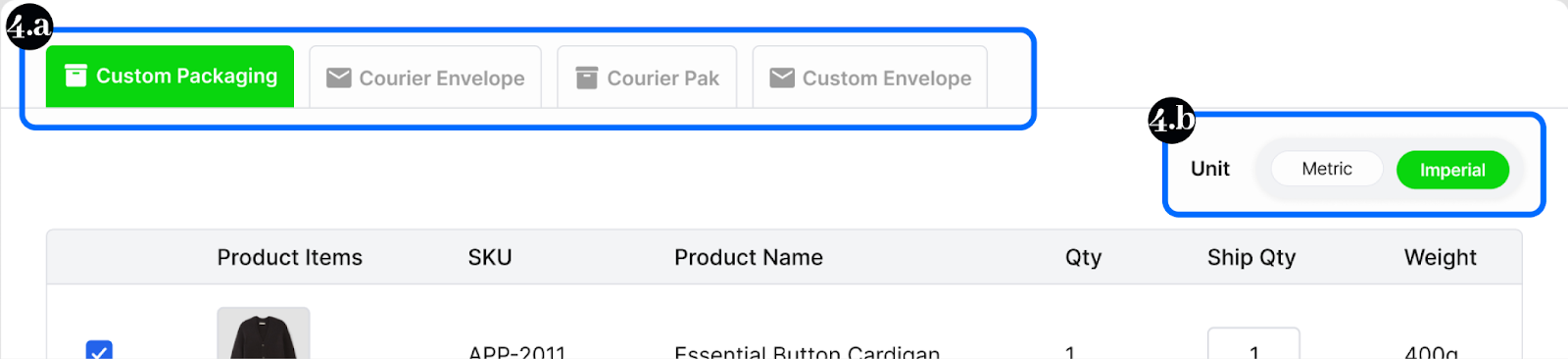
Choose the packaging type based on the product’s size and weight from the available options: Custom Box, Courier Envelope, Courier Pak and Your Own Envelope.
Select Metric (kg/cm) or Imperial (lbs/in) units. This applies to all packages in
the session.
Enter Dimensions, Weight, and Insurance
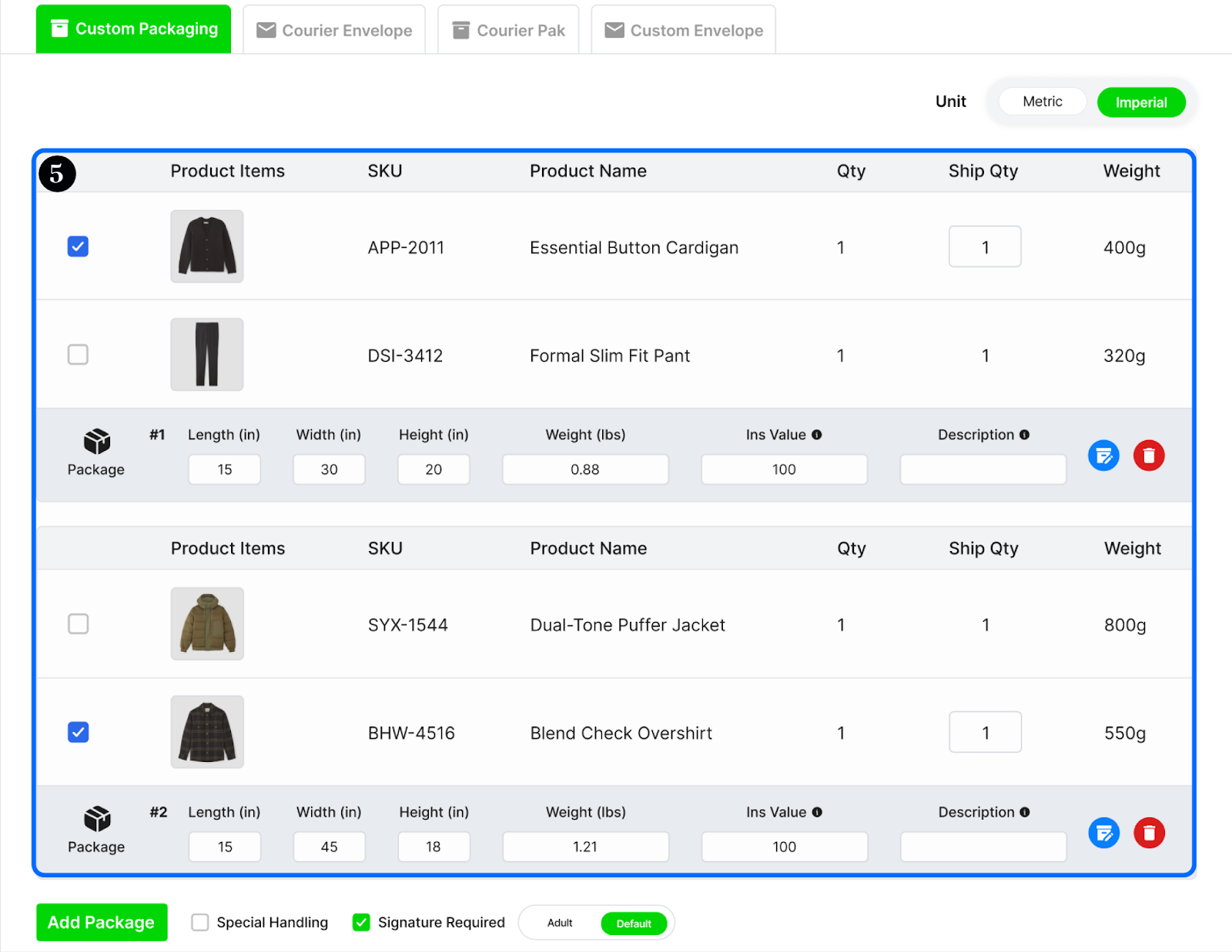
Provide each package’s length × width × height, weight, and declared insurance value.
Add multiple packages as needed based on the size and weight of products.
Assign Products to Packages
All products from the order are listed with their SKU, total quantity ordered, and weight for quick review.
Select one or more products and set how many units go into the package using the Ship Qty field.
For items with multiple units (e.g., quantity of 3), split them across packages—assign 2 units to Package #1, then add a new package and assign the remaining 1 unit to Package #2.
Enter the insurance amount based on the total value of items in that package to cover loss or damage during transit.
Repeat this process for all products in the order.
Ensure measurements are accurate—these values determine shipping rates and eligible carrier services.
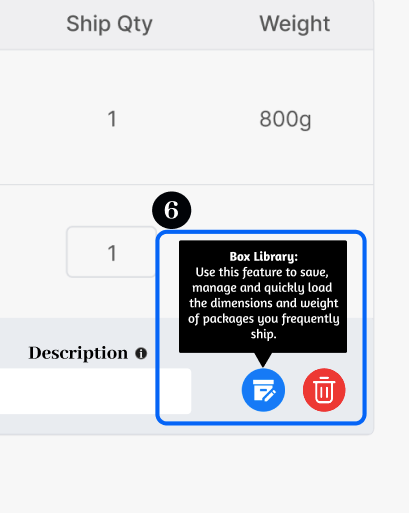
Box Library
Save frequently used box sizes for reuse by clicking the edit icon next to the box description.
Selecting a saved box automatically fills in its dimensions and weight during shipment creation.
Delivery Options
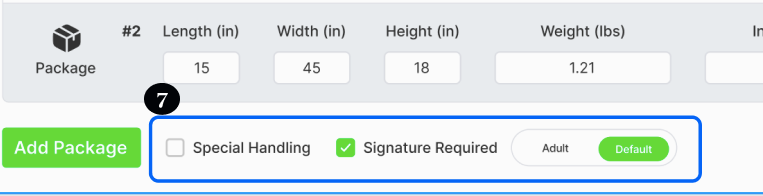
Saturday Delivery: Filters carriers to show only those supporting Saturday delivery.
Signature Required: Ensures delivery is authorized by an adult. Can be applied based on order value or specific requirements.
Select Carrier and Service
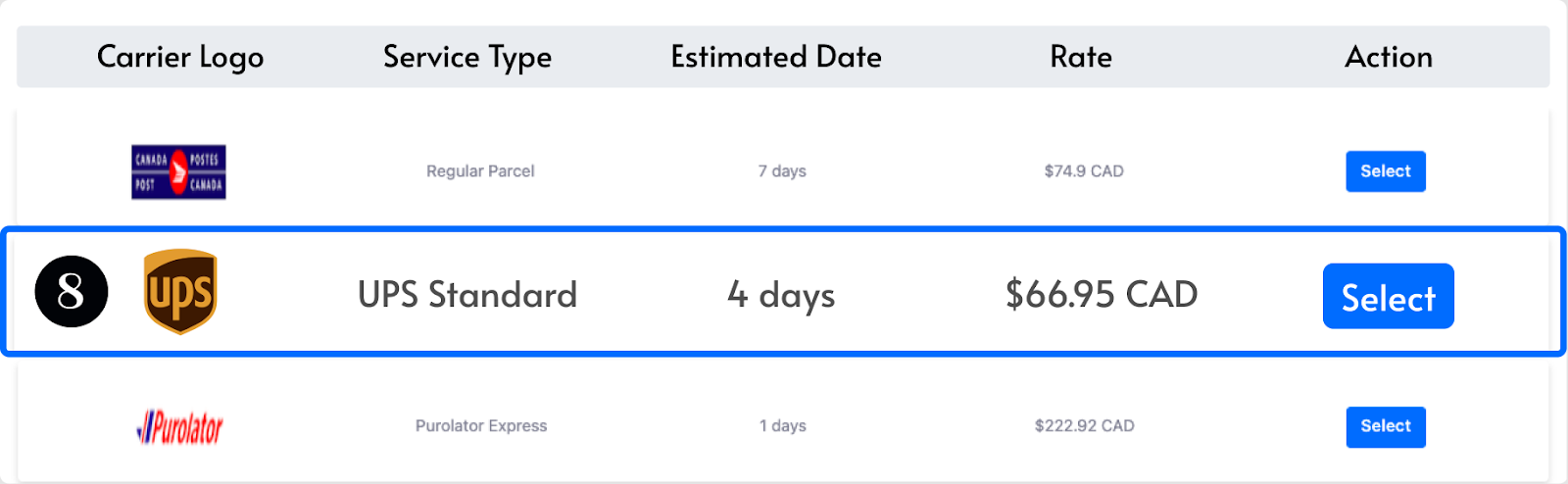
Choose a carrier (e.g., UPS, FedEx, DHL, or a local courier).
Pick the service level—Ground, Express, Overnight, or International.
Review the rates and estimated delivery date to balance cost efficiency and delivery speed.
Need Help?
For assistance with package details, carrier selection, or shipment setup, please contact our Support team.
Was this article helpful?
That’s Great!
Thank you for your feedback
Sorry! We couldn't be helpful
Thank you for your feedback
Feedback sent
We appreciate your effort and will try to fix the article