
Overview
This guide explains how to create a shipping label with your LateShipment.com account. Follow the steps below to add addresses, package details, and shipping preferences before generating your label.
Log in to your LateShipment.com account.
Navigate to Navigate to OneShip→ Manage Label from the left-hand menu.
Under Manage Label, go to Orders Created to view all orders synced from your Shopify store. This tab lets you quickly view, manage, and track all shipping labels in one place.
You can locate any order you want to create a label for and click Create Label to open the label creation dashboard.
Select Addresses
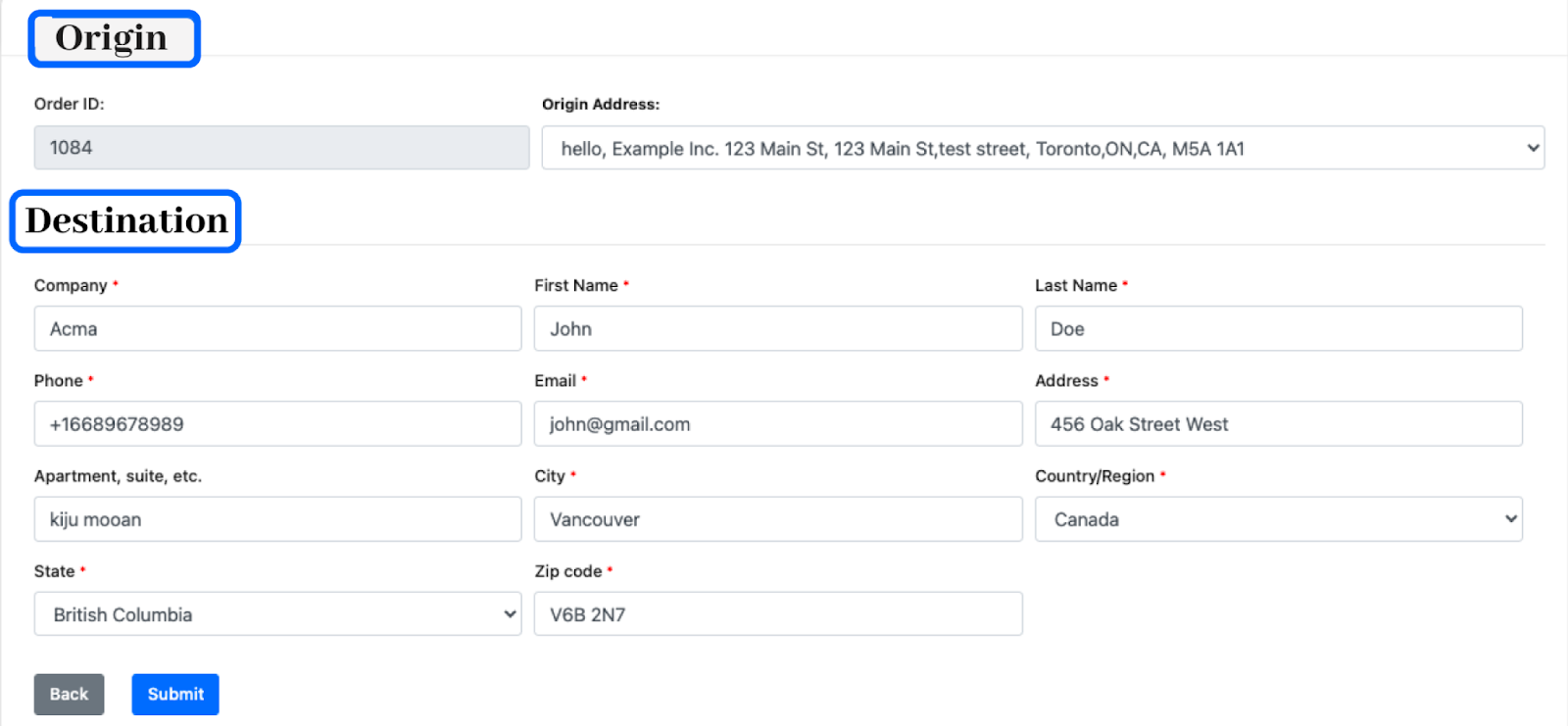
Origin (From Warehouse)
Choose a saved warehouse from the Origin Address dropdown.
Verify warehouse details: name, street, city, state/province, postal code, country, contact email, and phone.
To add a new warehouse, go to Manage Address in settings.
Destination (To Recipient)
Enter recipient name, street, city, state/province, ZIP/postal code, country, and apartment/suite (if applicable).
Select Residential Address if shipping to a residence to avoid carrier adjustment fees.
Add Package Details
Package Type: Select your preferred package type - Custom Box, Courier Envelope, Courier Pak, or Your Own Envelope.
Dimensions & Weight: Enter accurate length, width, height, and weight.
Measurement Units: Choose Metric (kg / cm) or Imperial (lbs / in).
Box Library: Save frequently used box sizes by clicking the edit icon next to the box description. You can store multiple box measurements for future shipments. Selecting a saved box automatically populates its dimensions to speed up the label creation process.
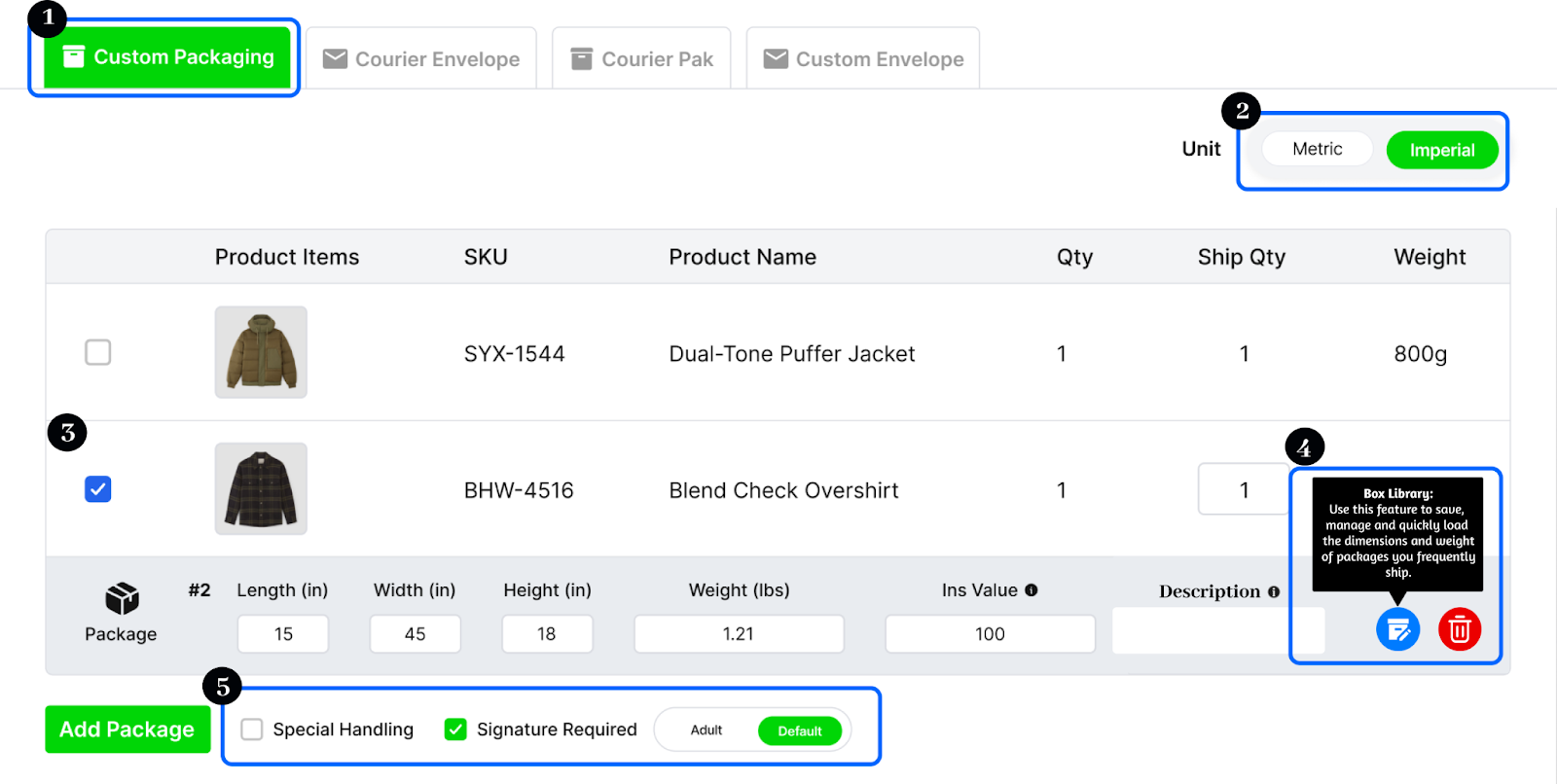
Special Services: Choose options such as Saturday Delivery or Signature Required where available; availability depends on the selected carrier and service in the next step.
Select Carrier and Service
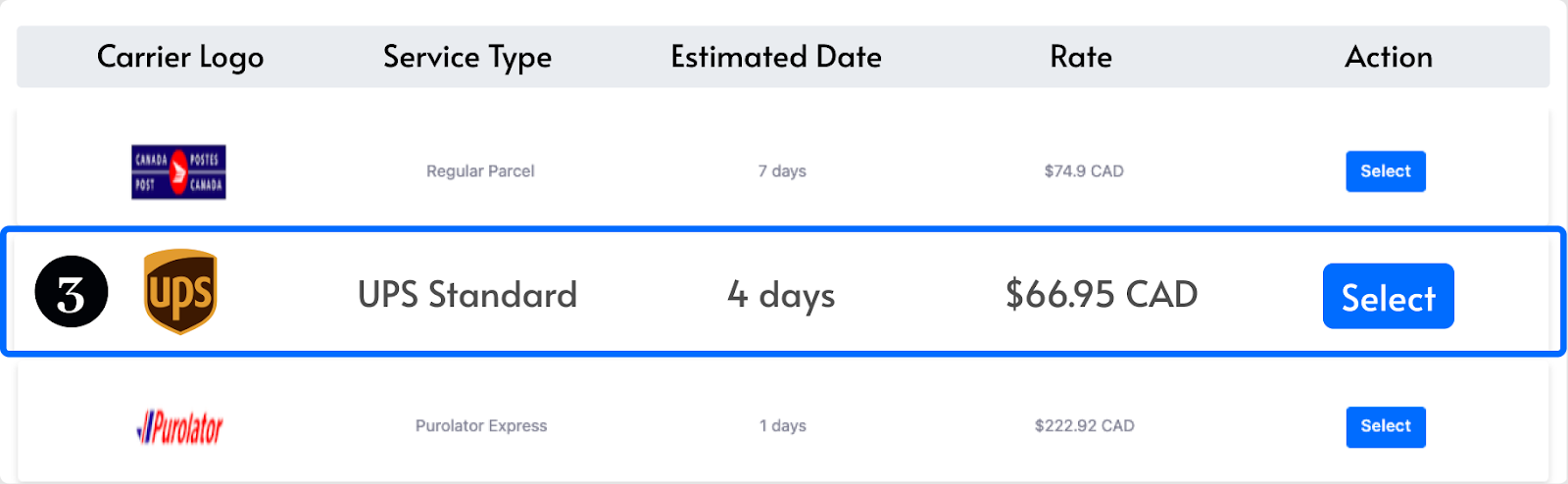
Choose a carrier and the service type (e.g., Ground, Express, Overnight, International).
Consider estimated delivery time, pickup/drop-off options, and cost to avoid unexpected fees.
Select your preferred carrier and service.
4. Schedule Pickup or Dropoff
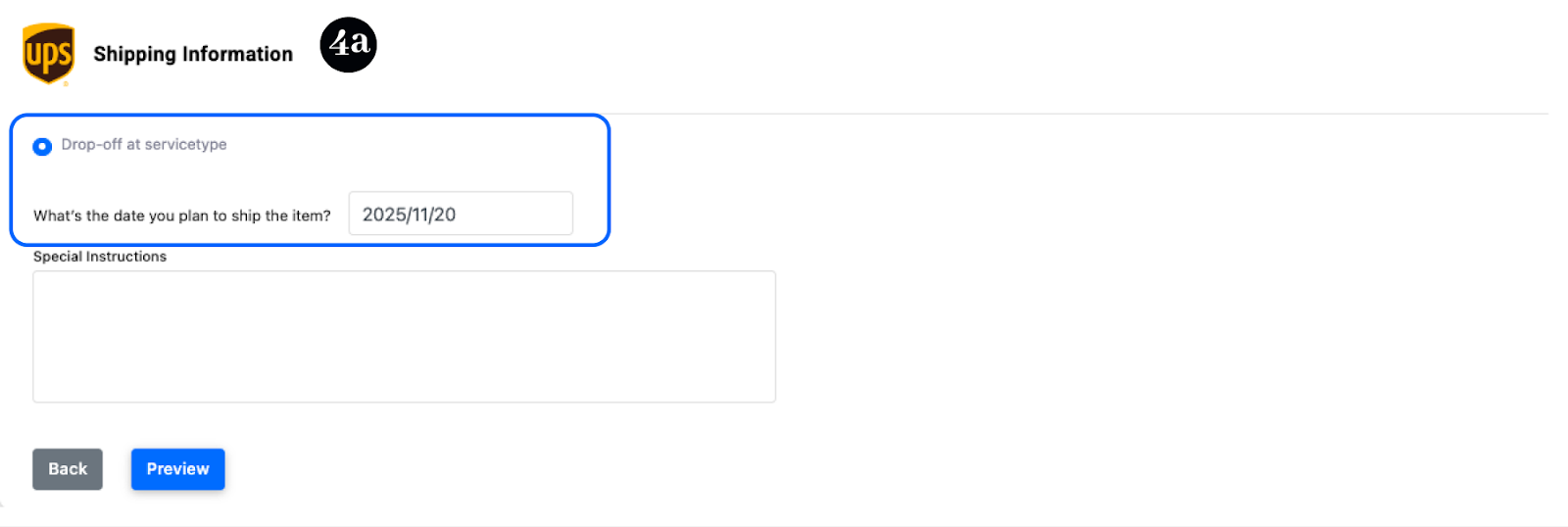
Drop-Off Option:
If you’d like to deliver your packages yourself, LateShipment provides access to a network of nearby drop‑off locations.
After selecting your courier, simply choose the Drop‑Off option to show that you’ll deliver the package at a convenient location.
Pickup Option:
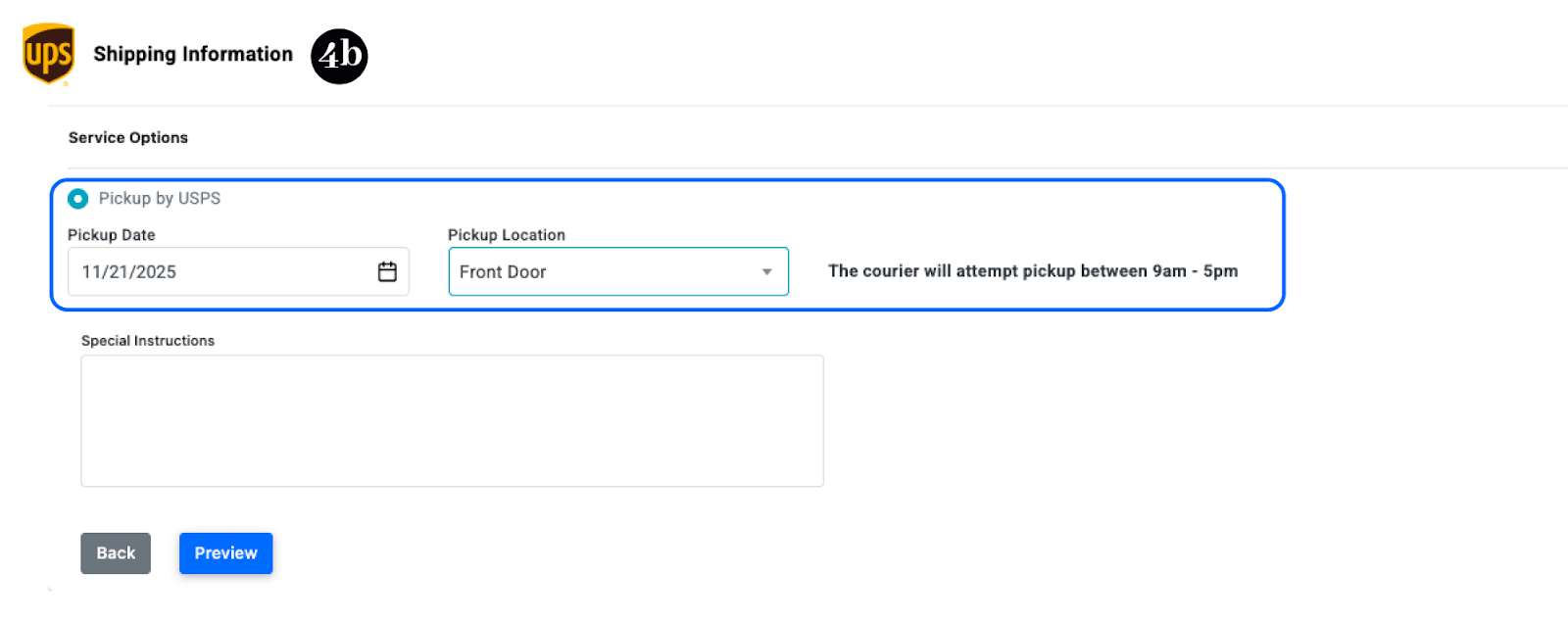
To have a courier collect your package from your location, select the Pickup option after choosing your courier. Then provide the following details:
Pickup Date: Choose a date for the pickup, keeping in mind that most carriers require at least 24 business hours’ notice.
Pickup Time Window: Select the time range when the courier can arrive, based on the slots provided.
Pickup Location: Provide the exact location for collection, such as a front porch, reception area, or loading dock.
5. Review, Generate, and Print
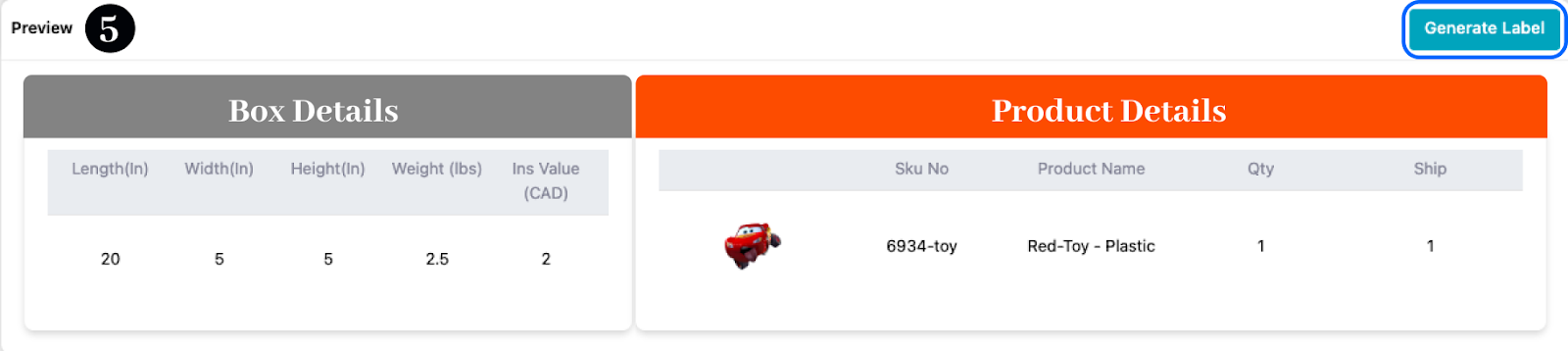
Review package dimensions and box details, then generate the label.
The label will display barcode, tracking number, sender/recipient addresses, and service details.
Download and print the label using a standard or label printer. Affix the label securely, ensuring the barcode is clearly visible and scannable.
Was this article helpful?
That’s Great!
Thank you for your feedback
Sorry! We couldn't be helpful
Thank you for your feedback
Feedback sent
We appreciate your effort and will try to fix the article