
Overview
This guide explains how email notifications can be configured to trigger automatically when a shipping label is created or cancelled. These alerts provide timely updates on label activity, ensuring accurate tracking.
1. Label Created
Purpose: Automatically notifies when a new shipping label is generated.
Configuration Steps:
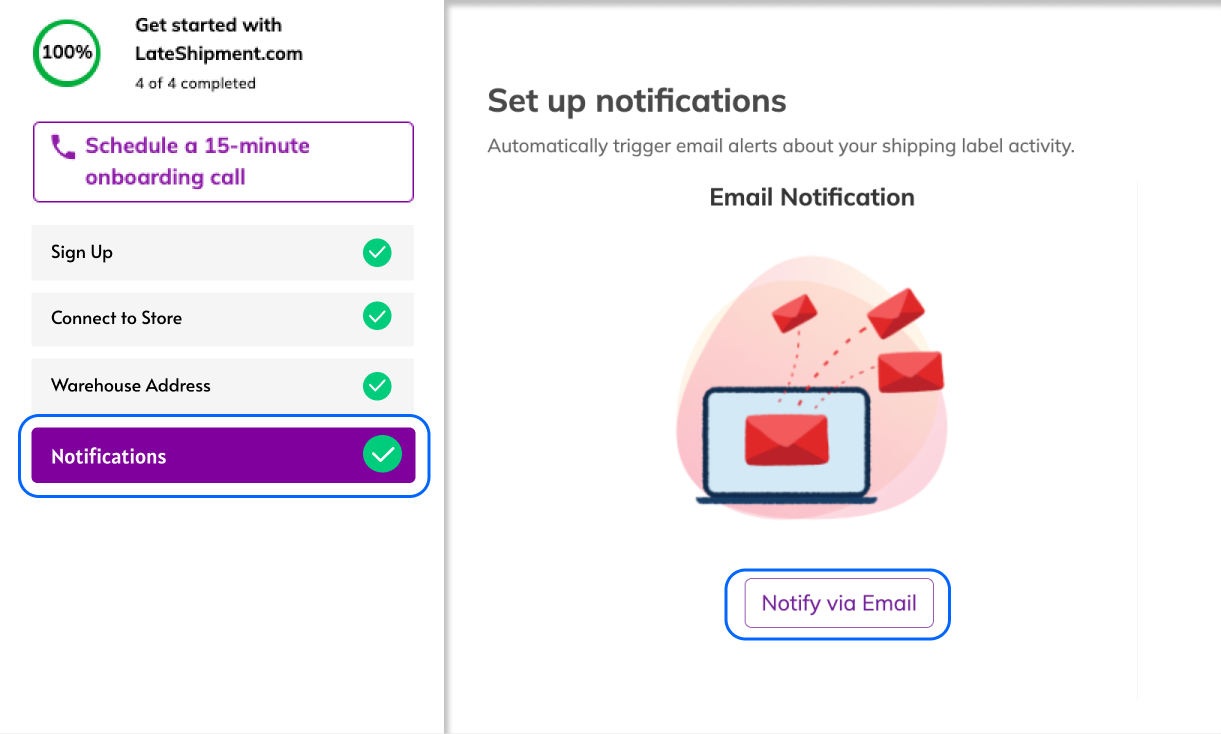
Navigate to One Label > Get Started > Notifications > Email Triggers.
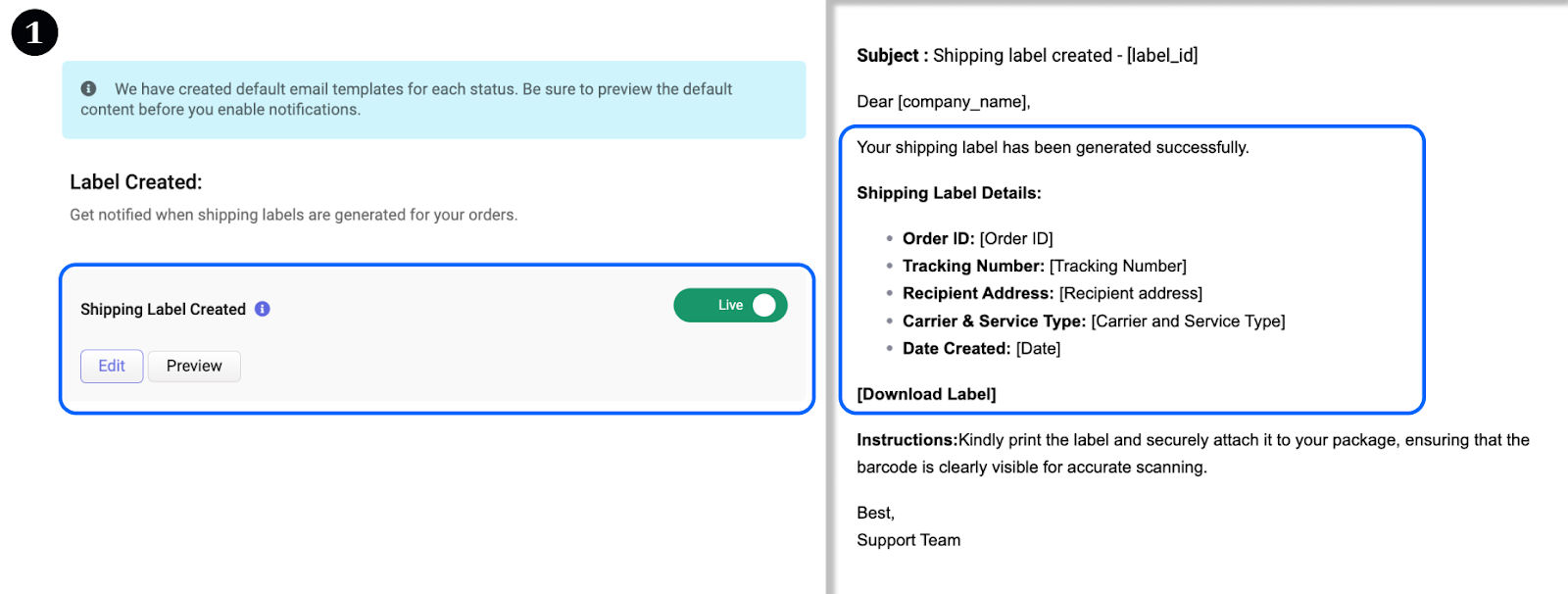
Select Label Created from the list of available triggers.
Review the default email template and customize as per your preference. Email includes relevant details about the label such as order id, tracking number, carrier, and service type, date created on, this making this easier to track shipments.
Toggle on to enable the trigger.
An email notification is sent each time a label is generated. The email includes a direct link to download the label making it easy to access.
2. Label Cancelled
Automatically notifies when an existing shipping label is cancelled.
Navigate to One Label > Get Started > Notifications > Email Triggers.
Select Label Cancelled from the list of triggers.
Review and customize the email template as per the preference. Email includes relevant details such as order ID, tracking number, and date/time of cancellation.
Toggle on to enable the trigger.
An email notification is sent whenever a previously generated label is cancelled.
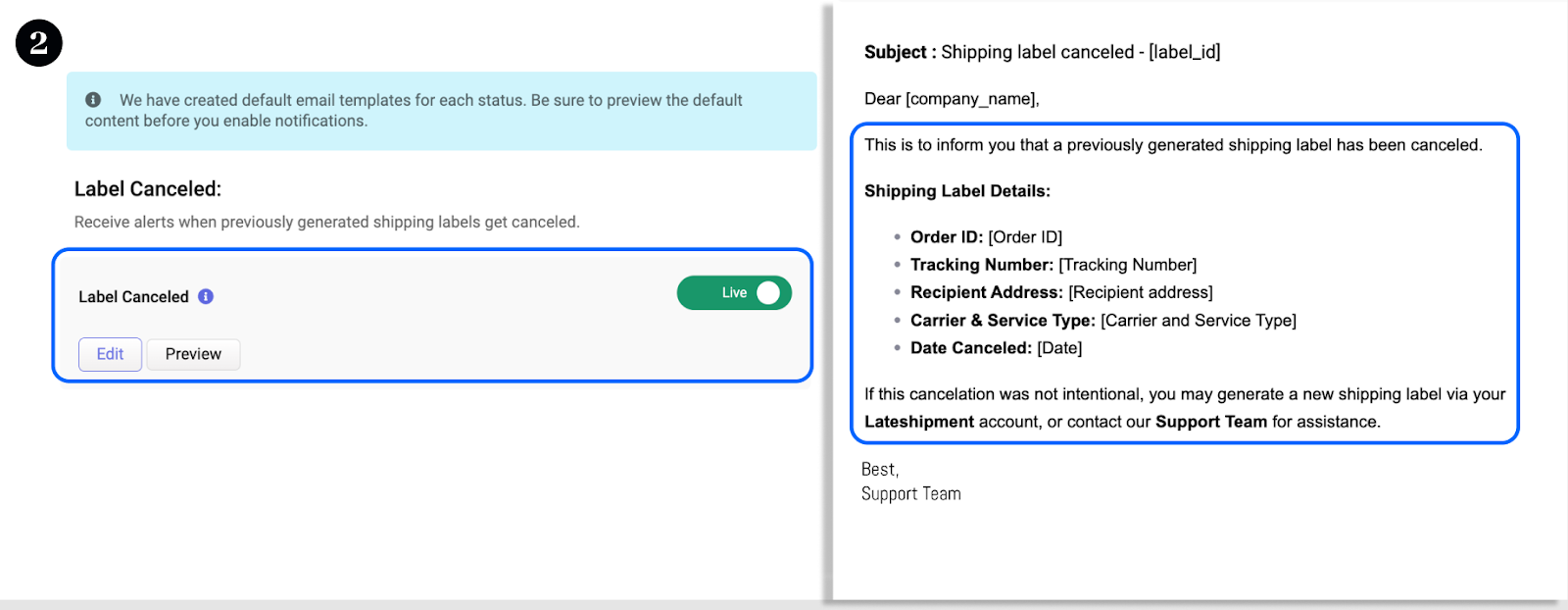
Note: If the cancellation was unintentional, a new label can be generated anytime from your Lateshipment account, or contact support for assistance.
Was this article helpful?
That’s Great!
Thank you for your feedback
Sorry! We couldn't be helpful
Thank you for your feedback
Feedback sent
We appreciate your effort and will try to fix the article