
Overview
This guide walks you through generating and downloading your FedEx invoice data as a CSV file using FedEx Billing Online. Use this process any time you need invoice data in a spreadsheet-friendly format for reconciliation, reporting, or import into another system.
Before You Start
An active FedEx Billing Online login with access to Invoices/Reporting.
The FedEx account number(s) and date range for the invoices you need.
A few minutes for FedEx to generate the report file before it can be downloaded.
Step 1: Go to Create Report
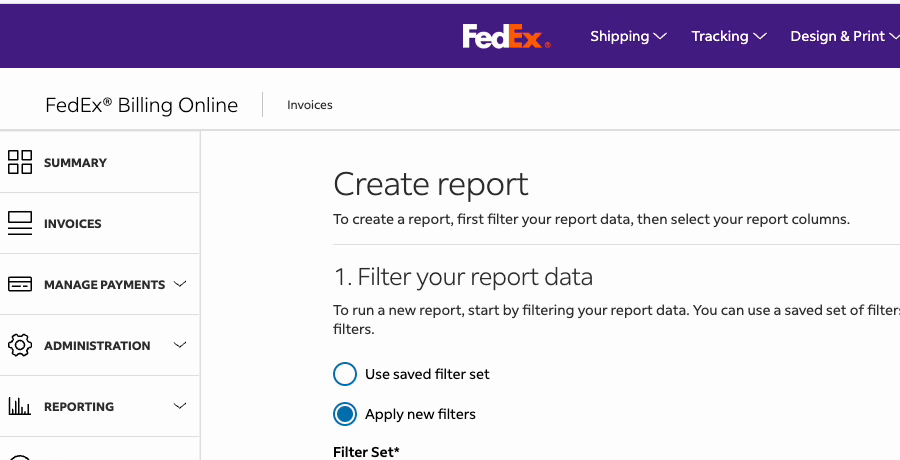
Log in to FedEx Billing Online and open the Invoices section. Select Reporting from the left-hand menu, then choose Create Report. Under "1. Filter your report data," choose Apply new filters (or select a previously saved filter set) to begin.
Step 2: Filter Your Report Data
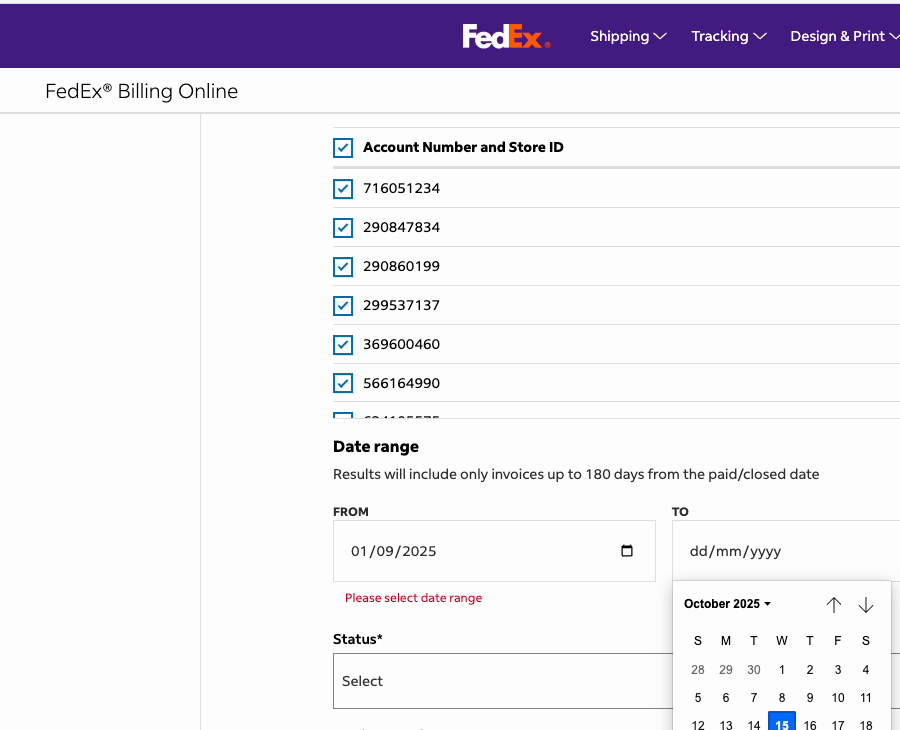
Select the account number(s) and store ID(s) to include, then set the Date range using the From and To fields (results are limited to invoices within the last 180 days of the paid/closed date). Choose an invoice Status if needed. Optionally check Save Filter Set if you want to reuse these filters later.
Step 3: Select Your Report Columns
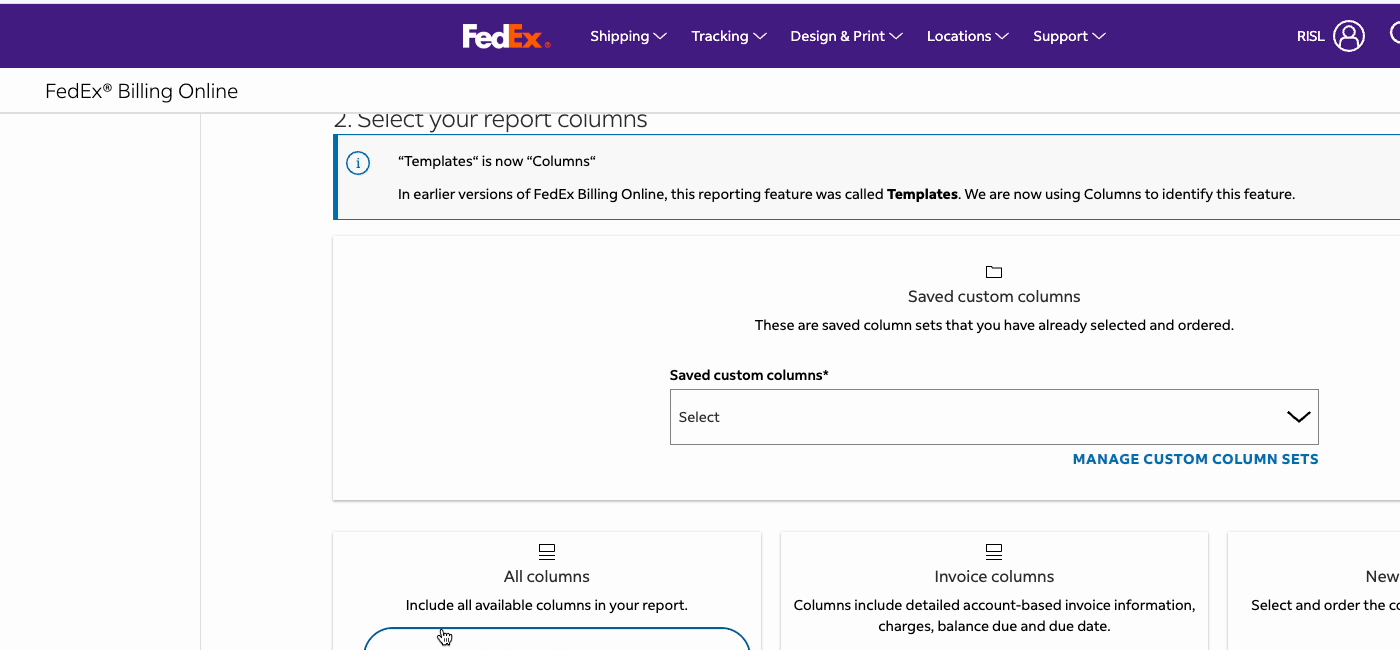
Scroll to "2. Select your report columns." You can choose from three options:
All columns — includes every available column in the report.
Invoice columns — detailed account-based invoice information, charges, balance due, and due date.
New custom column — build and save your own column set.
Click Prepare Download under the column set you want to use.
Step 4: Choose CSV as the File Type
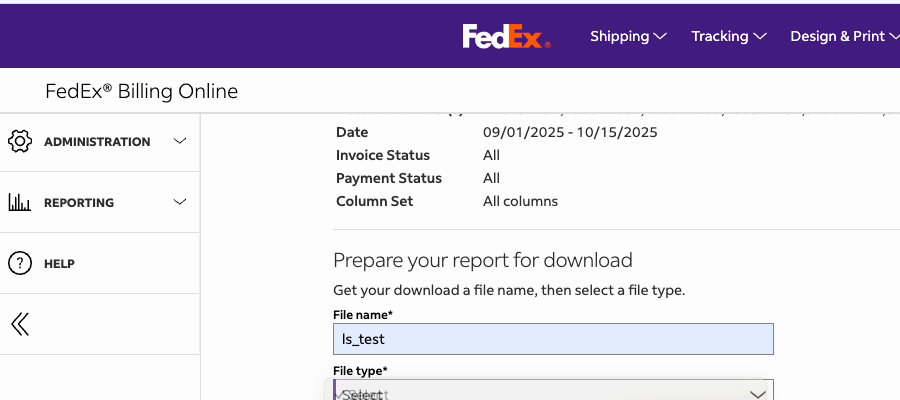
On the "Prepare your report for download" screen, enter a File name. Open the File type dropdown and select CSV (the other available formats are Excel, XML, and TXT). Click Download once CSV is selected.
Step 5: Download the Completed File
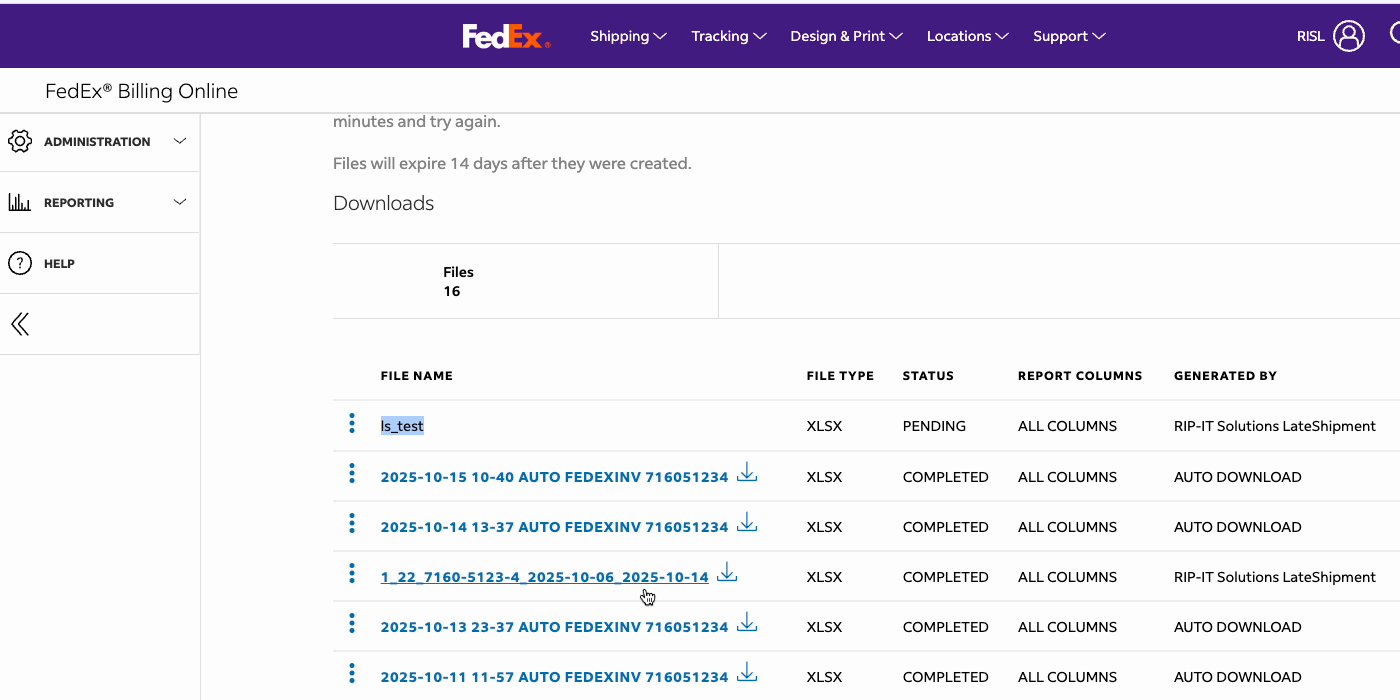
After clicking Download, you'll be taken to the Downloads list, which shows all report files you've generated. New files first appear with a status of PENDING while FedEx generates them. Click Refresh periodically until the status changes to COMPLETED, then click the file name (or the download icon next to it) to save the CSV file to your computer.
Troubleshooting
File stuck on PENDING: Wait a few minutes and click Refresh again. Large date ranges or "All columns" reports take longer to generate.
No results found: Double-check your date range is within the last 180 days and that the correct account number(s) are selected.
Download button disabled: Confirm you've entered a file name and selected a file type before clicking Download.
Was this article helpful?
That’s Great!
Thank you for your feedback
Sorry! We couldn't be helpful
Thank you for your feedback
Feedback sent
We appreciate your effort and will try to fix the article