
Overview
This guide explains how the Manage Address section allows you to maintain all your warehouse addresses under one tab. Keeping addresses accurate and up-to-date helps prevent cost errors and ensures shipments are fulfilled smoothly and on time.
Access Manage Address
Log in to LateShipment.com.
Navigate to One Label → Get Started → Manage Address → Add Address.
Add New Warehouse Addresses
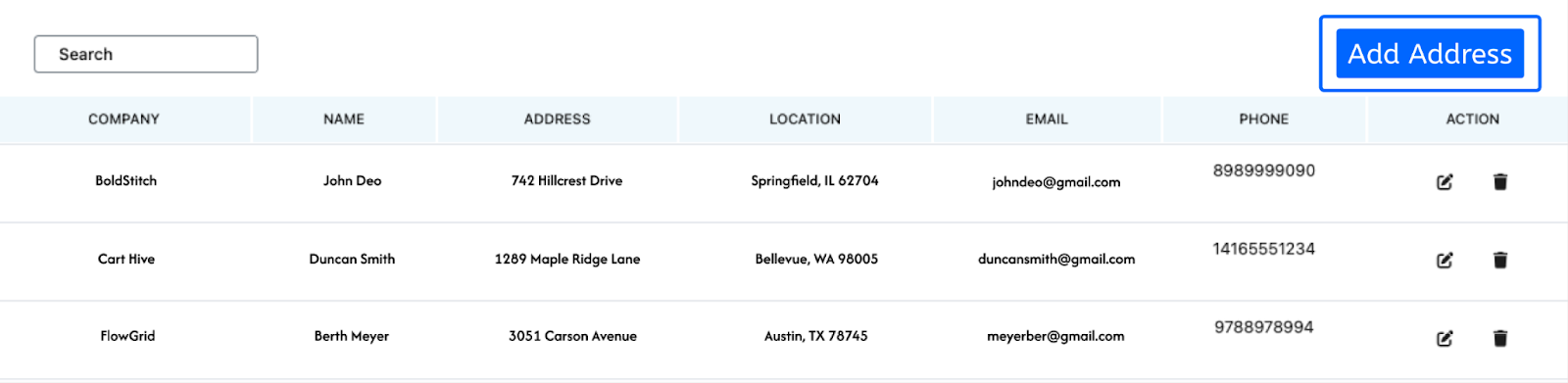
The warehouse address will be displayed as the origin (“From”) address when generating a shipping label.
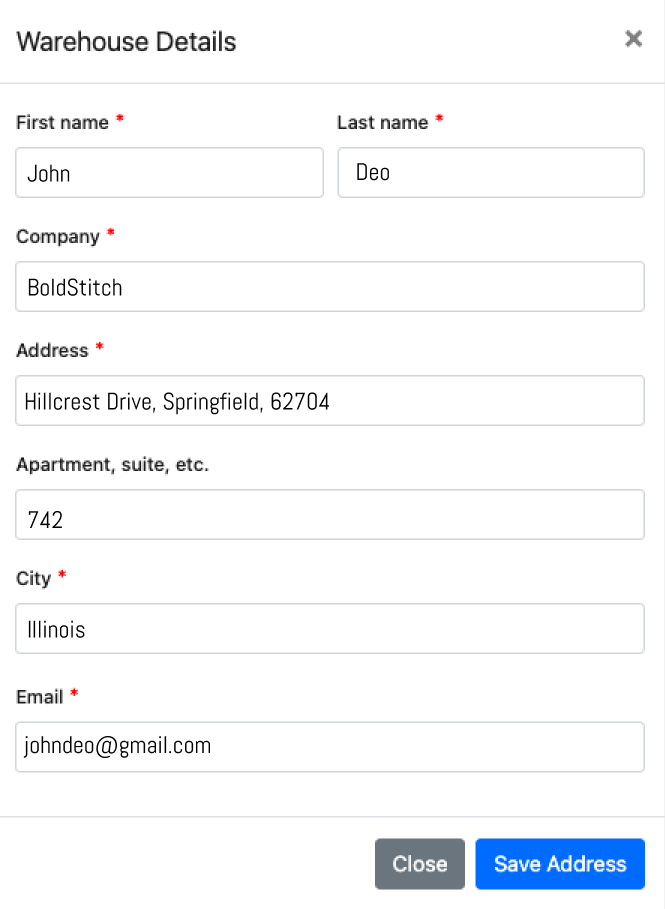
Enter the warehouse name, address, and contact details, then click Save.
The address will be submitted for validation, which typically takes 7–14 business days. Once validation is complete, the address will be available for creating shipping labels.
All validated addresses will appear in a list for selection during label generation.
2. Edit or Remove an Existing Warehouse Address
Edit Address:
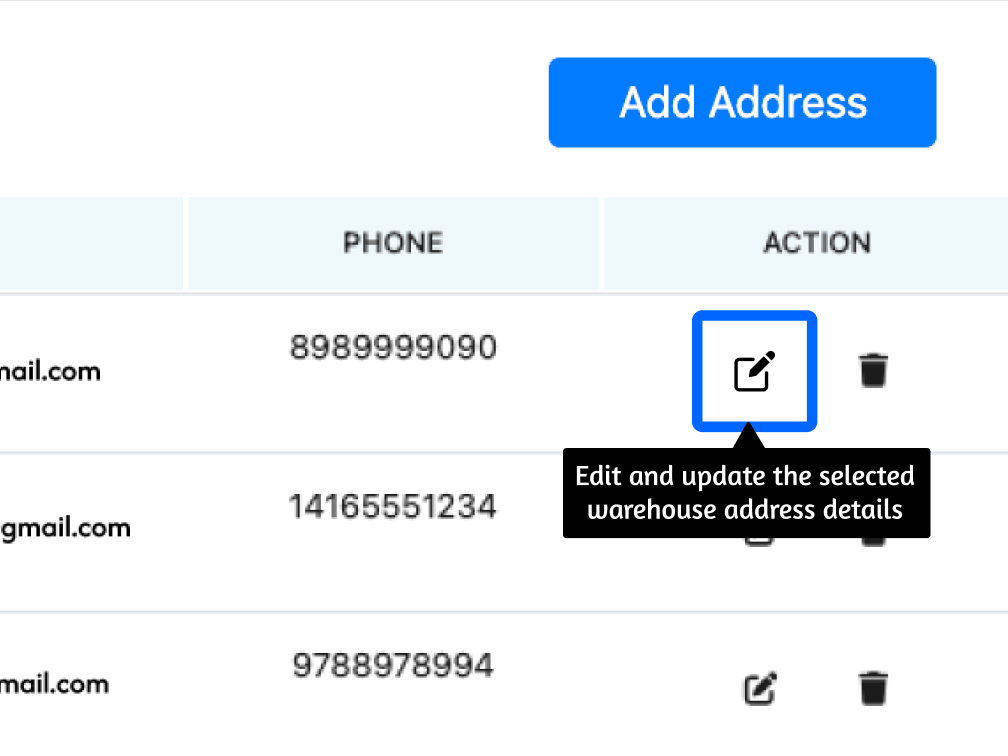
Click the edit icon next to the warehouse address you want to update.
Update details such as warehouse name, street address, or contact information.
Click Save to submit the changes for validation.
Remove Address:
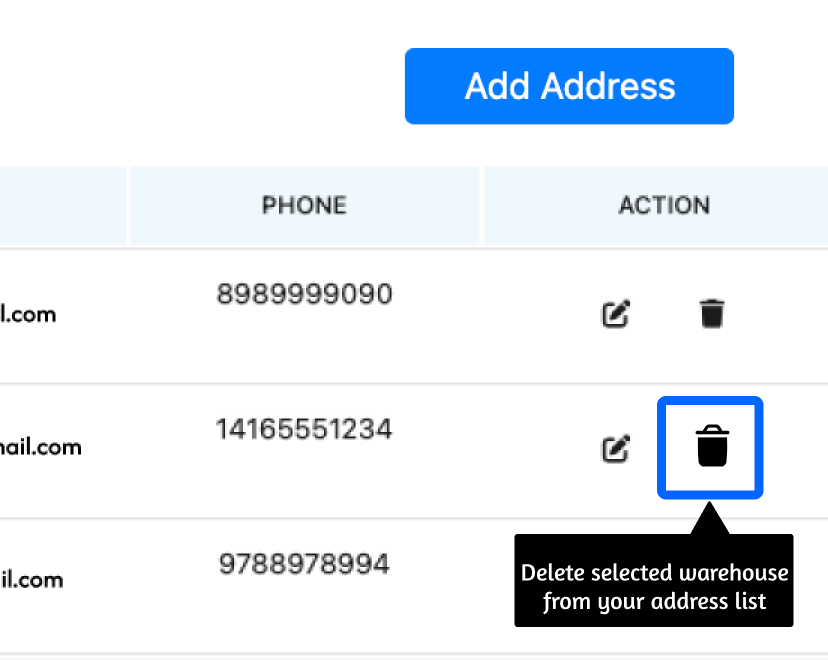
Click the remove icon next to the warehouse you want to delete.
Confirm the removal when prompted.
Note: You cannot remove a warehouse address that is linked to an active label. Once all labels associated with this address are fulfilled or cancelled, the warehouse address can be removed.
3. Address Validation
All new or updated addresses undergo an automated validation process to ensure they meet carrier and postal service standards.
Validation Timeline:
Standard processing: 7–14 business days
During validation: The address will not be available for label creation
After validation: The address becomes active and will be listed in the drop-down when creating a label
Validation Results:
Successful validation: The address is automatically activated
Failed validation: A notification will be sent with details about the issue. You can either re-edit and submit the address to a nearby location or Contact Support for immediate validation assistance. We would be happy to help you.
Was this article helpful?
That’s Great!
Thank you for your feedback
Sorry! We couldn't be helpful
Thank you for your feedback
Feedback sent
We appreciate your effort and will try to fix the article